
You finally get your Docker image building. Puppeteer installs successfully. Chrome or Chromium is present. Your Node.js script starts.
Then the container crashes with something like this:
[ERROR:zygote_host_impl_linux.cc] No usable sandbox!
Update your kernel or see https://chromium.googlesource.com/chromium/src/+/main/docs/linux/suid_sandbox_development.md
Or:
Failed to launch the browser process!
No usable sandbox!
If you are searching for chrome no usable sandbox docker, you are probably running headless Chrome, Chromium, Puppeteer, Playwright, Selenium, Browsershot, or a PDF-generation tool inside a container.
The frustrating part is that the most common fix online is also the most dangerous-looking one:
args: ['--no-sandbox']
It works. But should you use it?
The honest answer is: sometimes, but not blindly.
This guide explains why Chrome fails with “No usable sandbox” in Docker, what the sandbox actually does, when --no-sandbox is acceptable, and how to choose safer alternatives for local development, CI pipelines, PDF generation, and production browser automation.
What “No Usable Sandbox” Actually Means
Chrome is not a single process. It uses a multi-process architecture where different parts of the browser run with different privileges.
A normal Chrome session may include:
- A browser process
- Renderer processes
- GPU process
- Utility processes
- Network-related processes
- Extension-related processes
Renderer processes handle web content. That content may include JavaScript, images, fonts, WebAssembly, malformed HTML, and files from untrusted websites.
The Chrome sandbox exists to limit what a compromised renderer can do.
On Linux, Chromium’s sandboxing model uses multiple layers, including namespace-based isolation and seccomp-bpf syscall filtering. Chromium’s own Linux sandboxing documentation describes this as a layered model where one layer restricts access to resources and another reduces kernel attack surface.
When Chrome says “No usable sandbox,” it means it tried to enable its Linux sandbox but could not find a working sandbox mechanism in the current environment.
Inside Docker, that usually happens because the container environment blocks or restricts the kernel features Chrome wants to use.
Why This Happens More Often in Docker
Docker containers share the host kernel. They are isolated, but they are not full virtual machines.
That matters because Chrome’s sandbox also relies on kernel features. When Chrome runs inside a container, there are now two isolation systems interacting:
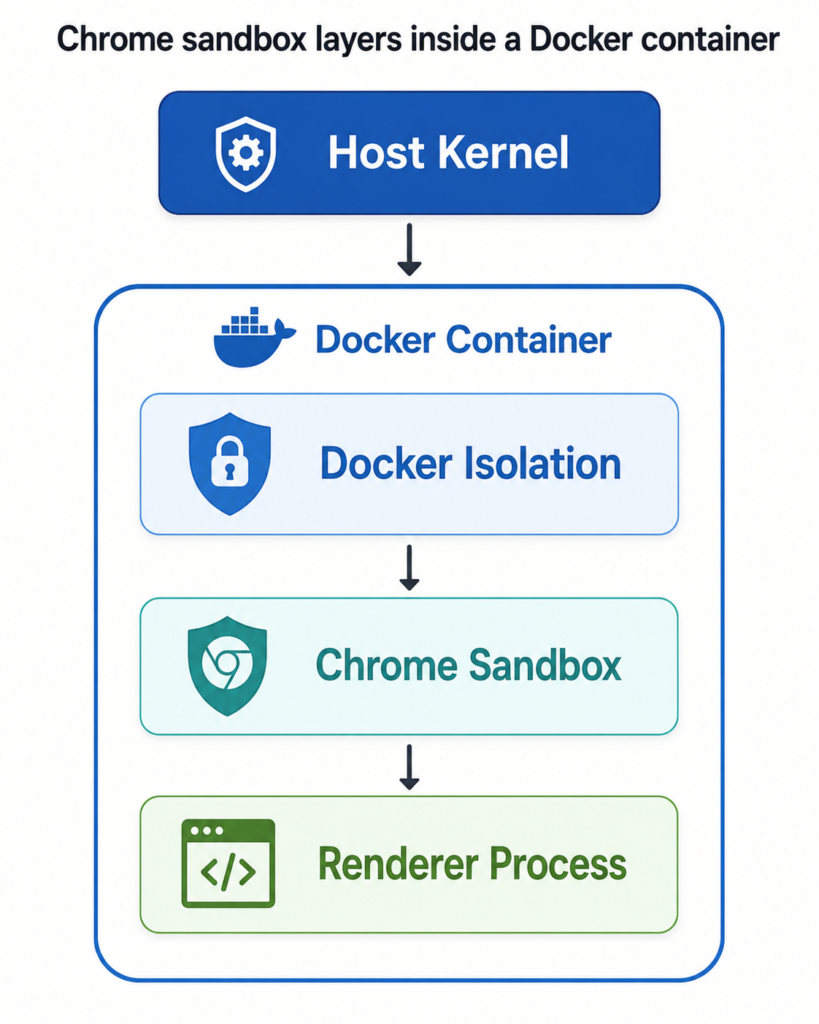
The failure usually happens because Chrome wants to create additional isolation inside a container that is already restricted.
Common blockers include:
- Running Chrome as
root - Missing or misconfigured
chrome-sandboxbinary - Disabled unprivileged user namespaces
- Docker’s default seccomp profile blocking required syscalls
- AppArmor restrictions on some Linux distributions
- Minimal base images missing runtime dependencies
- Cloud container platforms restricting sandbox features
- Running old Chromium builds or mismatched binaries
This is why the same Docker image may work on your laptop but fail in CI, Kubernetes, Cloud Run, or an Ubuntu server.
The image did not necessarily change. The host security environment did.
The Quick Fix: --no-sandbox
The fastest way to bypass the error is:
const browser = await puppeteer.launch({
  args: ['--no-sandbox']
});
Or from the command line:
chromium --headless --no-sandbox --disable-gpu https://example.com
This disables Chrome’s internal sandbox.
Many official examples and community answers mention this flag because it is simple, portable, and often necessary in restricted serverless or CI environments.
But it comes with an important tradeoff.
If Chrome processes malicious web content and a browser vulnerability is exploited, the sandbox would normally help contain the damage. Without the sandbox, the compromised browser process has fewer internal restrictions.
That does not mean the attacker automatically owns the host. Docker still provides container isolation. But you have removed one of Chrome’s key defense layers.
When --no-sandbox may be acceptable
Using --no-sandbox is more reasonable when:
- The browser only opens fully trusted internal HTML
- You are generating PDFs from your own templates
- The container runs as a non-root user
- The container has no sensitive secrets
- The filesystem is read-only where possible
- Network access is restricted
- The container is short-lived
- The workload runs in an isolated environment
For example, converting your own invoice HTML to PDF in a short-lived worker is much lower risk than crawling arbitrary websites submitted by users.
When --no-sandbox is a bad idea
Avoid --no-sandbox when:
- Users can submit arbitrary URLs
- You crawl unknown websites
- You render third-party HTML
- The container has cloud credentials
- The browser can access internal services
- The workload runs in a privileged container
- The container has broad network access
- You are building a browser-as-a-service platform
A simple rule:
If Chrome processes untrusted content, do not treat
--no-sandboxas a real fix. Treat it as a temporary workaround.
Common Error Messages
You may see one of these variants:
No usable sandbox!
Running as root without --no-sandbox is not supported
Failed to move to new namespace: PID namespaces supported, Network namespace supported, but failed: errno = Operation not permitted
The setuid sandbox is not running as root
FATAL:zygote_host_impl_linux.cc
Although the wording differs, the underlying issue is usually the same: Chrome cannot initialize a sandbox that fits the current container environment.
Root Cause 1: Running Chrome as Root
Many Docker images run as root by default.
Chrome does not like running as root unless you disable the sandbox. That is why you often see this error:
Running as root without --no-sandbox is not supported
A better Docker pattern is to create a non-root user:
FROM node:22-bookworm-slim

RUN apt-get update && apt-get install -y \
    chromium \
    fonts-liberation \
    libnss3 \
    libatk-bridge2.0-0 \
    libgtk-3-0 \
    libxss1 \
    libasound2 \
    && rm -rf /var/lib/apt/lists/*

RUN groupadd -r pptruser && useradd -r -g pptruser -G audio,video pptruser

WORKDIR /app

COPY package*.json ./
RUN npm ci

COPY . .

RUN chown -R pptruser:pptruser /app

USER pptruser

CMD ["node", "index.js"]
Then launch Puppeteer with the system Chromium path:
const browser = await puppeteer.launch({
  executablePath: '/usr/bin/chromium',
  headless: true
});
This alone may not fix every sandbox issue, but it removes one of the most common problems.
Running as non-root is also a good baseline even when you temporarily use --no-sandbox.
Root Cause 2: The Setuid Sandbox Is Missing or Misconfigured
Older Chrome sandbox setups used a helper binary commonly called chrome-sandbox.
This binary needs strict permissions:
-rwsr-xr-x root root chrome-sandbox
The important part is the setuid bit:
chmod 4755 chrome-sandbox
chown root:root chrome-sandbox
If the binary exists but permissions are wrong, Chrome may refuse to use it.
However, this approach is less attractive in modern containers because:
- It requires a setuid root binary
- Some base images strip or break permissions
- Some platforms disallow setuid behavior
- Puppeteer documentation notes that this path is increasingly outdated
- User namespaces are the preferred modern direction where available
If you are using a distribution package such as Debian or Ubuntu’s chromium, the package may already handle this better than a manually downloaded browser binary.
For most Docker use cases, prefer a maintained OS package or Chrome for Testing image rather than copying random Chromium builds into a minimal image.
Root Cause 3: User Namespaces Are Disabled
Chrome’s namespace sandbox can use unprivileged user namespaces.
Check the host setting:
sysctl kernel.unprivileged_userns_clone
A value of 1 usually means unprivileged user namespaces are enabled:
kernel.unprivileged_userns_clone = 1
A value of 0 means they are disabled:
kernel.unprivileged_userns_clone = 0
On some systems, you can enable it with:
sudo sysctl -w kernel.unprivileged_userns_clone=1
To persist it:
echo 'kernel.unprivileged_userns_clone=1' | sudo tee /etc/sysctl.d/99-userns.conf
sudo sysctl --system
This can help on self-managed Linux servers.
But in managed CI, Kubernetes, serverless containers, and locked-down enterprise hosts, you may not be allowed to change this setting.
Also, enabling user namespaces is a host-level security decision. Do not change it casually on shared production infrastructure without understanding your organization’s policy.
Root Cause 4: Docker Seccomp Blocks Required Syscalls
Docker applies a default seccomp profile to containers.
Seccomp is a Linux kernel feature that restricts which syscalls a process can make. Docker’s default profile is intentionally protective and blocks many syscalls that are unnecessary for typical applications.
Chrome’s sandbox, however, may need namespace-related syscalls such as clone, unshare, or setns, depending on the version and sandbox path.
If those calls are blocked, Chrome can fail with namespace or sandbox errors.
A very broad workaround is:
docker run --security-opt seccomp=unconfined my-chrome-image
But this disables Docker’s seccomp protection for the whole container. That is usually too broad for production.
A better approach is to use a custom seccomp profile that allows only the syscalls Chrome needs.
For local testing, you might try:
docker run \
  --security-opt seccomp=chrome.json \
  my-chrome-image
The exact profile depends on your Chrome version, base image, kernel, and runtime.
This is one reason many teams choose --no-sandbox: maintaining a correct Chrome-compatible seccomp profile takes work.
Still, if you are building a production browser automation service that handles untrusted pages, investing in a proper container security profile is worth it.
Root Cause 5: AppArmor Restrictions on Ubuntu
Recent Ubuntu releases introduced additional AppArmor behavior that can affect Chrome sandboxing, especially when using Chrome binaries downloaded by automation tools instead of the system-installed Chrome path.
Puppeteer’s troubleshooting documentation specifically notes that Ubuntu 23.10+ may apply an AppArmor profile to Chrome stable binaries installed at /opt/google/chrome/chrome, and that this can prevent Chrome for Testing binaries from using user namespaces.
This can produce the same “No usable sandbox” failure even when user namespaces appear enabled.
Possible fixes include:
- Use the distro-provided Chromium package
- Use Google Chrome installed in the expected path
- Adjust the AppArmor profile where appropriate
- Run in an environment where the browser binary path matches the policy
- Avoid mixing system Chrome policies with downloaded Chrome binaries
This is a good example of why the error is not purely a Dockerfile problem. The host operating system can change the behavior.
Root Cause 6: Missing Shared Memory or Runtime Dependencies
Not every Chrome crash is a sandbox crash.
Docker’s default /dev/shm size is small, and Chrome can fail or behave unpredictably when shared memory is limited.
You may see crashes that disappear after adding:
docker run --shm-size=1g my-chrome-image
Or in Docker Compose:
services:
  app:
    shm_size: "1gb"
Another common workaround is:
args: ['--disable-dev-shm-usage']
This tells Chrome to use /tmp instead of /dev/shm.
However, do not confuse this with sandboxing. --disable-dev-shm-usage may fix renderer crashes, but it does not fix a missing sandbox.
Similarly, missing libraries can cause launch failures that look related but are not. Common packages include:
libnss3
libatk-bridge2.0-0
libgtk-3-0
libxss1
libasound2
fonts-liberation
Use the full browser error log before assuming every launch failure is a sandbox issue.
Comparing Fixes for Chrome No Usable Sandbox Docker Errors
| Fix | Security level | Complexity | Best for | Notes |
|---|---|---|---|---|
Add --no-sandbox | Low | Very low | Trusted HTML, local testing, simple PDF jobs | Fastest workaround but removes Chrome sandbox |
| Run as non-root user | Medium | Low | Almost all containers | Good baseline, but may not solve sandbox alone |
| Enable user namespaces | Medium to high | Medium | Self-managed Linux hosts | Requires host-level control |
| Configure setuid sandbox | Medium | Medium | Older Chrome setups | Less ideal for modern containers |
| Custom seccomp profile | High | High | Production browser automation | Safer than unconfined seccomp |
seccomp=unconfined | Medium-low | Low | Debugging only | Broadly weakens container syscall restrictions |
--cap-add=SYS_ADMIN | Low | Low | Avoid if possible | Very broad capability; often overused |
| Use hosted browser service | High | Low to medium | Untrusted browsing at scale | Transfers sandboxing complexity |
The worst “fix” is usually this:
docker run --privileged my-chrome-image
A privileged container removes many of Docker’s isolation boundaries. If your goal is secure browser execution, --privileged moves in the wrong direction.
A Practical Dockerfile for Trusted PDF Generation
For many blog readers, the use case is not crawling random websites. It is generating PDFs from internal HTML.
In that case, a pragmatic setup may look like this:
FROM node:22-bookworm-slim

RUN apt-get update && apt-get install -y \
    chromium \
    fonts-liberation \
    libnss3 \
    libatk-bridge2.0-0 \
    libgtk-3-0 \
    libxss1 \
    libasound2 \
    ca-certificates \
    dumb-init \
    && rm -rf /var/lib/apt/lists/*

RUN groupadd -r app && useradd -r -g app app

WORKDIR /app

COPY package*.json ./
RUN npm ci --omit=dev

COPY . .

RUN chown -R app:app /app

USER app

ENTRYPOINT ["dumb-init", "--"]
CMD ["node", "server.js"]
Puppeteer launch example:
import puppeteer from 'puppeteer-core';

const browser = await puppeteer.launch({
  executablePath: '/usr/bin/chromium',
  headless: true,
  args: [
    '--no-sandbox',
    '--disable-dev-shm-usage'
  ]
});
For trusted internal PDF generation, this is a common and practical compromise.
To improve safety:
- Run as non-root
- Use a read-only filesystem
- Avoid mounting Docker socket
- Do not inject cloud admin credentials
- Restrict outbound network access
- Use short-lived containers
- Keep Chromium updated
You are still disabling Chrome’s sandbox, but you are reducing what the process can reach if compromised.
A Safer Pattern for Untrusted URLs
If users submit URLs and your service opens them, treat Chrome as a high-risk workload.
A safer architecture looks like this:
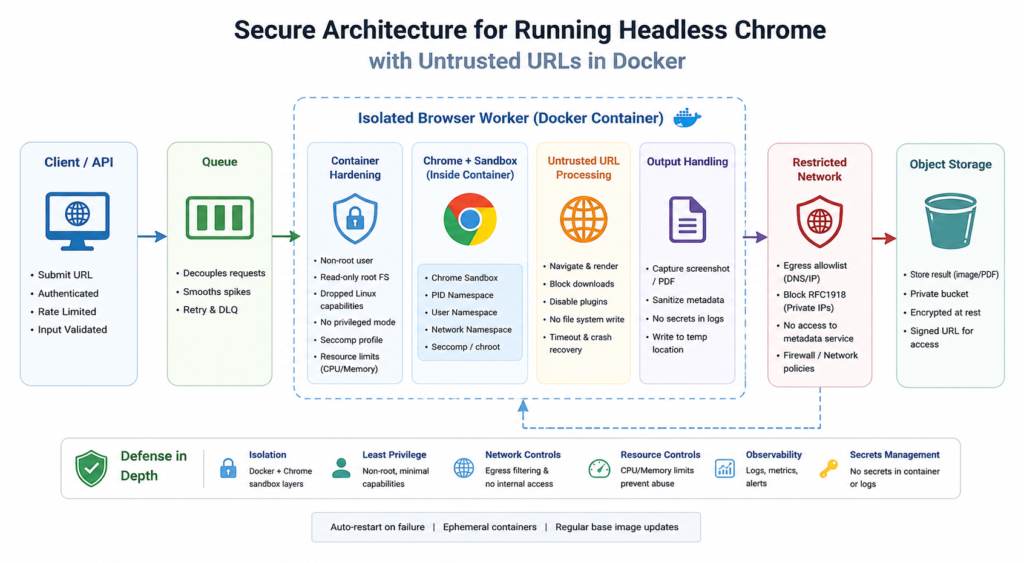
The browser worker should have:
- No database credentials
- No access to internal metadata services
- No access to private network ranges
- No mounted secrets except what it strictly needs
- Read-only root filesystem where possible
- Non-root user
- Tight CPU and memory limits
- Egress allowlist or proxy
- Automatic cleanup after each job
- Strong container and host isolation
For highly untrusted browsing, consider microVM isolation, dedicated browser pools, or a managed browser rendering service.
The important idea is simple:
Do not put an unsandboxed browser in the same trust zone as your application secrets.
Puppeteer Example: Choose Flags Based on Risk
Instead of hardcoding the same launch flags everywhere, make the risk decision explicit:
const trustedMode = process.env.BROWSER_TRUSTED_MODE === 'true';

const args = [
  '--disable-dev-shm-usage'
];

if (trustedMode) {
  args.push('--no-sandbox');
}

const browser = await puppeteer.launch({
  executablePath: process.env.CHROME_BIN || '/usr/bin/chromium',
  headless: true,
  args
});
Then document the behavior:
BROWSER_TRUSTED_MODE=true
This makes the security tradeoff visible during deployment review.
For untrusted browsing, fail closed if the sandbox does not work:
if (!trustedMode) {
  console.log('Running without --no-sandbox. Chrome sandbox must be available.');
}
That one decision prevents accidental deployment of an unsafe browser worker.
Troubleshooting Checklist
Use this checklist when Chrome fails inside Docker.
1. Confirm the user
docker run --rm my-image whoami
Avoid running Chrome as root unless you fully understand the sandbox implications.
2. Check Chrome version and path
chromium --version
which chromium
Or:
google-chrome --version
which google-chrome
3. Check user namespaces on the host
sysctl kernel.unprivileged_userns_clone
4. Check Docker seccomp mode
Run a test with:
docker run --rm \
  --security-opt seccomp=unconfined \
  my-image
Use this as a diagnostic step, not as a final production configuration.
5. Increase shared memory
docker run --rm \
  --shm-size=1g \
  my-image
6. Try a known-good base image
If your minimal Alpine image keeps failing, test with Debian or Ubuntu first.
Alpine uses musl libc, while many Chrome builds expect glibc-based environments. You can run Chromium on Alpine, but Debian-based images are often simpler for Puppeteer and Chrome workloads.
7. Separate sandbox errors from dependency errors
A missing library may look like this:
error while loading shared libraries: libnss3.so
That is not a sandbox problem. Install the missing package.
What I Recommend in Practice
For local development:
args: ['--no-sandbox', '--disable-dev-shm-usage']
This is usually fine if you are testing your own pages.
For CI pipelines:
- Use non-root containers
- Add
--no-sandboxonly if the content is trusted - Keep the image updated
- Avoid privileged containers
- Increase
/dev/shmif tests are flaky
For internal PDF or screenshot services:
- Use non-root user
- Use
--no-sandboxonly for trusted templates - Block unnecessary outbound network access
- Remove sensitive credentials
- Run short-lived jobs
For untrusted web crawling:
- Do not rely on
--no-sandbox - Invest in proper sandbox support
- Use a custom seccomp/AppArmor design
- Isolate browser workers from internal systems
- Consider microVMs or managed browser infrastructure
The goal is not to avoid --no-sandbox at all costs. The goal is to know exactly what risk you are accepting.
Conclusion
The chrome no usable sandbox docker error is not just a random Puppeteer failure. It is Chrome telling you that it cannot safely initialize its Linux sandbox inside the current container environment.
The quick fix is --no-sandbox, and for trusted internal workloads, it may be an acceptable compromise when combined with Docker hardening.
But for untrusted websites, user-submitted HTML, crawlers, browser-as-a-service platforms, or anything exposed to hostile content, disabling the sandbox should make you pause.
Start with the basics: run as a non-root user, keep Chrome updated, avoid privileged containers, restrict network access, and understand whether your workload needs Chrome’s sandbox or can safely rely on outer container isolation.
If you are only rendering your own HTML, keep the setup simple and hardened. If you are opening the public internet, design the browser worker like a disposable, isolated, high-risk environment.
Have you hit the “No usable sandbox” error in Docker, Puppeteer, Selenium, or Playwright? Share your container setup and what fixed it in the comments. For more practical Docker, Linux, DevOps, and troubleshooting guides, subscribe to Codefy and explore the related tutorials.