

Your Linux server appears healthy, chronyd is running, and the NTP servers are listed correctly. But one detail in the output refuses to improve:
MS Name/IP address         Stratum Poll Reach LastRx Last sample
===============================================================================
^? time1.example.net             0   6     0     -     +0ns[   +0ns] +/-    0ns
^? time2.example.net             0   6     0     -     +0ns[   +0ns] +/-    0ns
If chronyc sources shows 0 reach, Chrony has not received a valid NTP response from that source during its recent polling attempts.
That does not automatically mean the NTP server is down. The request may never leave the machine, DNS may resolve to an unreachable address, a firewall may block UDP port 123, the source may be marked offline, or the reply may be discarded before Chrony accepts it.
The most effective troubleshooting approach is to follow the NTP packet’s path instead of repeatedly restarting chronyd.
This guide explains what the Reach value means, how to identify the failing layer, and how to restore reliable time synchronization without hiding the real cause.
What Does Reach Mean in chronyc sources?
Run:
chronyc sources -v
A healthy system may show:
MS Name/IP address         Stratum Poll Reach LastRx Last sample
===============================================================================
^* ntp1.example.net              2   6   377    23    -85us[ -101us] +/-   18ms
^+ ntp2.example.net              2   6   377    17    +42us[  +42us] +/-   24ms
^- ntp3.example.net              3   6   377    45   -312us[ -298us] +/-   80ms
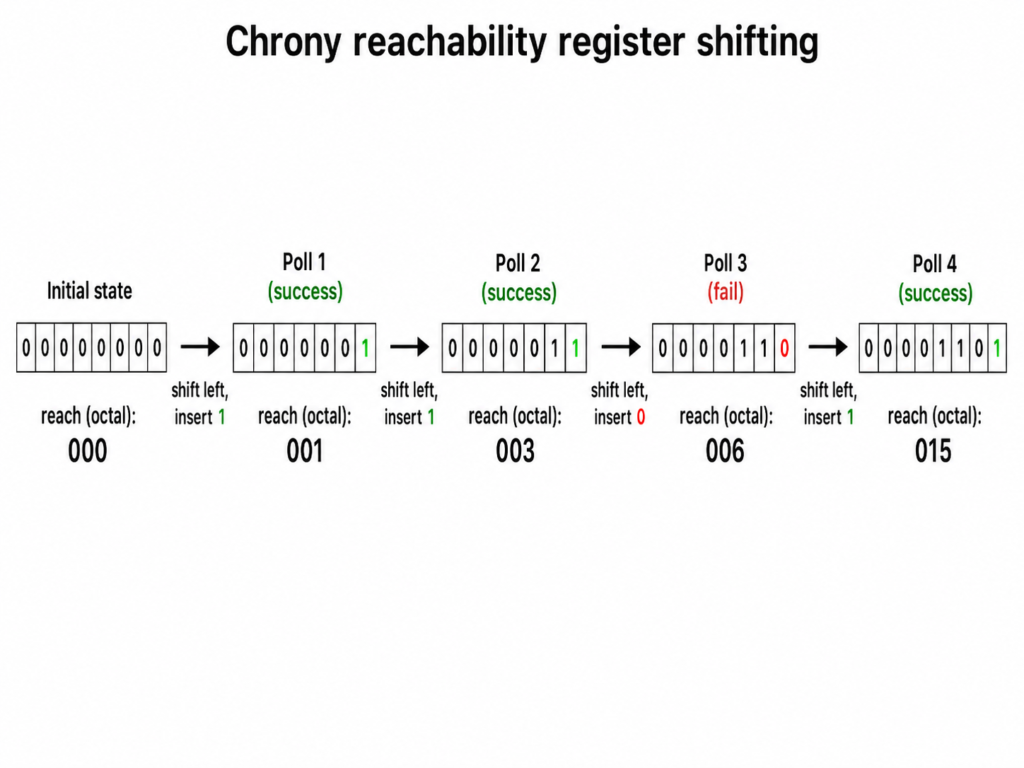
The Reach column is an eight-bit reachability register displayed as an octal number.
Each time Chrony polls a source, it shifts the register and records whether a valid response was received:
- A successful response adds a
1. - A failed poll adds a
0. - The register remembers the eight most recent polling results.
That is why a fully reachable source normally reaches:
377
Octal 377 represents eight successful responses:
11111111
A value of 0 means no valid responses are represented in the register.
Intermediate values show partial or recovering connectivity:
| Reach value | General meaning |
|---|---|
0 | No recent poll received a valid response |
1 | Most recent poll succeeded |
3 | Two most recent polls succeeded |
7 | Three recent successes |
17, 37, 77 | Connectivity is improving or intermittent |
377 | All eight recorded polls succeeded |
Do not expect Reach to jump from 0 to 377 immediately after fixing the problem. It builds over successive polls.
The official Chrony chronyc manual describes Reach as an eight-bit register printed in octal and updated as responses are received or missed.
Reach 0 vs a Source That Is Not Selected
A source can be reachable without being selected for synchronization.
This distinction prevents a lot of unnecessary troubleshooting.
The left side of chronyc sources contains two status characters:
^*
^+
^-
^?
^x
The first character identifies the source mode:
| Symbol | Meaning |
^ | NTP server |
= | NTP peer |
# | Locally connected reference clock |
The second character shows the selection state:
| Symbol | Meaning |
* | Current synchronization source |
+ | Acceptable source combined with the selected source |
- | Acceptable but excluded from combination |
? | Unusable, unreachable, or lacking enough measurements |
x | Considered a falseticker |
~ | Source has excessive variability |
W | Waiting for another source |
P | Preferred source awaiting selection conditions |
A source with Reach 377 and a - marker is communicating successfully. Chrony simply chose not to combine it.
A source showing ^? with Reach 0 has a more fundamental problem: no valid NTP samples are available from it.
Why Restarting Chrony Usually Does Not Fix Reach 0
Restarting the daemon can clear state and trigger new polling, but it cannot open a blocked network path.
This command:
sudo systemctl restart chronyd
will not repair:
- Broken DNS
- A missing route
- Blocked outbound UDP port 123
- Blocked return packets
- An NTP server that is not listening
- A cloud firewall rule
- An offline source
- An incorrect server address
- A network namespace with no external route
Restarting may briefly make the situation harder to interpret because it resets observations and forces you to wait for new samples.
Use a restart after changing configuration. Do not use it as the first diagnostic step.
Step 1: Verify That chronyd Is Actually Running
On RHEL, Rocky Linux, AlmaLinux, CentOS Stream, and Fedora, check:
systemctl status chronyd
On some Debian or Ubuntu installations, the unit may also be named chrony:
systemctl status chrony
Confirm that the service is active:
Active: active (running)
Then inspect recent logs:
journalctl -u chronyd -b --no-pager
Or:
journalctl -u chrony -b --no-pager
Look for messages involving:
- Name resolution failures
- Unreachable sources
- Invalid configuration directives
- Permission errors
- Sources going offline
- Network interface changes
- NTS certificate or key-establishment failures
If chronyc cannot communicate with the daemon, you may see:
506 Cannot talk to daemon
That is different from Reach 0. In that case, investigate the daemon, its Unix socket, permissions, or the service state before testing NTP connectivity.
Step 2: Confirm Which Configuration Chrony Is Using
The usual configuration file is:
/etc/chrony.conf
Some distributions use:
/etc/chrony/chrony.conf
Check the systemd unit to see how chronyd starts:
systemctl cat chronyd
Then inspect configured sources:
grep -RE '^[[:space:]]*(server|pool|peer)[[:space:]]' \
  /etc/chrony.conf /etc/chrony/chrony.conf /etc/chrony.d 2>/dev/null
A typical client configuration might include:
pool pool.ntp.org iburst
or internal servers:
server ntp1.example.net iburst
server ntp2.example.net iburst
server ntp3.example.net iburst
The iburst option makes Chrony send an initial burst of requests when a source becomes reachable. This helps it obtain measurements and synchronize more quickly after startup, but it does not bypass a firewall.
After editing the configuration, validate what the daemon recognizes:
chronyc sources -v
You can also inspect source details:
chronyc selectdata
On supported Chrony versions, this command provides additional information about why sources are selectable or excluded.
Step 3: Check Whether the Source Is Offline
Chrony can mark NTP sources offline. An offline source is known to the daemon, but Chrony does not actively poll it.
Check the activity summary:
chronyc activity
Example:
200 OK
3 sources online
0 sources offline
0 sources doing burst
0 sources with unknown address
If sources are offline, bring them online:
sudo chronyc online
Then initiate faster measurements:
sudo chronyc burst 4/4
Recheck:
chronyc sources -v
Sources may be configured with the offline option:
server ntp1.example.net offline
That setting is appropriate for systems with intermittent connectivity, but the source must later be enabled with chronyc online.
Network-management scripts can also switch sources offline when an interface goes down. A routing path that appears later may not automatically trigger the expected online transition in every setup.
If chronyc activity reports offline sources after the network is available, investigate NetworkManager dispatcher scripts and distribution-specific Chrony integrations.
Step 4: Test DNS Resolution
If the source is configured by hostname, verify that it resolves:
getent ahosts ntp1.example.net
You can also use:
resolvectl query ntp1.example.net
or:
dig ntp1.example.net
A DNS problem may appear in chronyc sources as:
^? ntp1.example.net
or as a source with an unknown address.
Check Chrony’s activity output:
chronyc activity
Pay attention to:
sources with unknown address
If the hostname returns both IPv4 and IPv6 addresses, test whether both families are usable:
getent ahostsv4 ntp1.example.net
getent ahostsv6 ntp1.example.net
A common real-world failure is that DNS returns an IPv6 address, but the server has no working IPv6 route. Chrony then attempts a path that cannot succeed.
You can temporarily test an explicit IP address in chrony.conf:
server 192.0.2.20 iburst
This is useful for isolating DNS from transport problems, but hardcoding public NTP IP addresses is generally not a good permanent design. Pool members and provider addresses can change.
Step 5: Verify Routing to the NTP Server
Resolve the source address and check which path Linux will use:
ip route get 192.0.2.20
Expected output includes an interface and source address:
192.0.2.20 via 192.0.2.1 dev eth0 src 192.0.2.10
A missing route, incorrect source address, or unexpected interface can explain why requests receive no reply.
On multi-homed servers, the request may leave through one interface while the reply returns through another. Strict reverse-path filtering can then discard the traffic.
Inspect:
sysctl net.ipv4.conf.all.rp_filter
sysctl net.ipv4.conf.default.rp_filter
Do not disable reverse-path filtering blindly. First confirm asymmetric routing with packet capture and review the network design.
For an NTP server reachable only through a VPN, verify that the VPN route is active before Chrony polls it.
Step 6: Check UDP Port 123 in Both Directions
NTP normally uses UDP destination port 123.
A firewall can block:
- Requests leaving the client for server UDP/123.
- Replies returning from server port 123.
- Traffic at the host firewall.
- Traffic at a router or perimeter firewall.
- Traffic in a cloud security group or network ACL.
- Traffic inside a container or network namespace.
The official Chrony FAQ recommends checking Reach and using packet-capture tools when a firewall may be blocking NTP traffic.
Inspect local firewall rules.
For firewalld:
sudo firewall-cmd --list-all
For nftables:
sudo nft list ruleset
For legacy iptables:
sudo iptables -S
sudo iptables -t raw -S
sudo iptables -t mangle -S
Remember that an NTP client normally sends requests to remote UDP port 123 from a client source port selected by the operating system. Opening inbound UDP/123 as though the machine were an NTP server is not necessarily the correct fix.
The firewall must allow the outbound request and its return traffic.
Step 7: Use tcpdump to Find Where the Packet Stops
Packet capture is the most decisive test for Reach 0.
Run:
sudo tcpdump -ni any udp port 123
Then ask Chrony to poll more quickly:
sudo chronyc burst 4/4
You may observe three patterns.
Pattern 1: No packets leave the machine
If tcpdump shows nothing, investigate:
- The source is offline.
- Chrony has not resolved the hostname.
- You are watching the wrong network namespace.
- The daemon is not polling the source yet.
- The configuration was not loaded.
- The source is using a nonstandard port.
- Local security policy prevents packet creation.
Check:
chronyc activity
chronyc sources -v
journalctl -u chronyd -b
Pattern 2: Requests leave, but no replies return
Example:
192.0.2.10.48217 > 198.51.100.20.123: NTPv4, Client
192.0.2.10.48217 > 198.51.100.20.123: NTPv4, Client
No response follows.
Likely causes include:
- Remote NTP server is down.
- Server is not listening on UDP/123.
- Outbound or return traffic is blocked.
- Upstream provider blocks public NTP.
- Server restricts clients by IP.
- NAT or routing is broken.
At this point, restarting Chrony is unlikely to help. The packet has left the daemon and failed elsewhere.
Pattern 3: Requests and replies are both visible
Example:
192.0.2.10.48217 > 198.51.100.20.123: NTPv4, Client
198.51.100.20.123 > 192.0.2.10.48217: NTPv4, Server
If replies arrive but Reach stays at 0, investigate why Chrony rejects them.
Possible causes include:
- Invalid or malformed NTP response.
- Authentication failure.
- NTS failure.
- Source address does not match the expected server.
- The reply fails Chrony’s NTP tests.
- Another time daemon or network component interferes.
- Responses are visible on the interface but dropped before reaching the process.
Inspect detailed source information:
chronyc ntpdata
For a specific source:
chronyc ntpdata ntp1.example.net
This can show NTP test results, packet counts, timestamps, and other information useful for distinguishing “no response” from “response rejected.”
Step 8: Verify That the Remote Server Is a Working NTP Server
A host can respond to ping while failing to provide NTP.
This test:
ping ntp1.example.net
only confirms that ICMP works if the server permits it. It does not prove that UDP/123 is reachable or that an NTP service is running.
Similarly, this test can be misleading:
nc -zvu ntp1.example.net 123
UDP is connectionless. A “success” message from Netcat does not necessarily mean a valid NTP response was received.
A better test is to query with Chrony itself:
chronyd -Q -t 3 'server ntp1.example.net iburst'
The -Q mode can measure the clock offset without changing the system clock. Exact options may vary by Chrony version, so check:
chronyd --help
man chronyd
You can also temporarily add a known-good source and compare behavior:
pool pool.ntp.org iburst
If public sources work but the internal server remains at Reach 0, focus on the internal server, ACLs, routing, or firewall path.
If all sources remain unreachable, focus on the client or its network.
Step 9: Check Whether Multiple Time Daemons Are Running
Only one daemon should normally discipline the system clock.
Check for common alternatives:
systemctl status chronyd
systemctl status systemd-timesyncd
systemctl status ntpd
Also inspect processes:
ps -ef | grep -E '[c]hronyd|[n]tpd|[t]imesyncd'
A second daemon may not directly cause Reach 0, but it can create confusing synchronization states, port conflicts, startup behavior, or competing clock adjustments.
Disable the daemon you are not using.
For example:
sudo systemctl disable --now systemd-timesyncd
sudo systemctl enable --now chronyd
Use the correct unit names for your distribution.
Step 10: Check SELinux and Other Security Controls
SELinux normally supports the distribution-provided Chrony configuration, but custom paths, nonstandard ports, unusual network namespaces, or hardened policies can interfere.
Check recent denials:
sudo ausearch -m AVC,USER_AVC -ts recent
Or:
sudo journalctl -t setroubleshoot --since "30 minutes ago"
Do not permanently disable SELinux as a troubleshooting shortcut.
A temporary permissive test can identify whether policy is involved, but the final solution should be a correct label, Boolean, port type, or policy adjustment.
Also inspect:
- AppArmor profiles
- systemd sandboxing directives
- Container security policies
- Kubernetes network policies
- Cloud egress filters
- Host-based endpoint-security agents
Step 11: Confirm That Chrony Is Synchronizing After Reach Recovers
A nonzero Reach value proves that valid replies are being received. It does not, by itself, prove that the system clock is synchronized.
Run:
chronyc tracking
A healthy result may look like:
Reference ID    : C0000214 (ntp1.example.net)
Stratum         : 3
Ref time (UTC)  : Wed Jun 10 09:24:41 2026
System time     : 0.000013421 seconds slow of NTP time
Last offset     : -0.000018722 seconds
RMS offset      : 0.000035840 seconds
Leap status     : Normal
Important fields include:
- Reference ID: Current selected source.
- Stratum: Distance from the reference clock.
- System time: Difference between system time and Chrony’s estimate.
- Last offset: Most recent clock offset.
- RMS offset: Long-term offset estimate.
- Leap status:
Normalusually indicates synchronization;Not synchronisedindicates a problem.
Also run:
chronyc sources -v
chronyc sourcestats -v
You want to see at least one selected source marked with:
^*
The Red Hat time-synchronization documentation recommends using tracking, sources, and sourcestats to inspect Chrony synchronization.
Why Reach May Recover Slowly
Chrony does not poll all servers every second.
The Poll column is expressed as a power of two. For example:
| Poll value | Approximate interval |
4 | 16 seconds |
5 | 32 seconds |
6 | 64 seconds |
7 | 128 seconds |
8 | 256 seconds |
10 | 1,024 seconds |
If Poll is 6, one new reachability result is typically added around every 64 seconds, although Chrony randomizes and adjusts polling behavior.
That means building from 0 to 377 can take several minutes.
To accelerate testing after fixing connectivity:
sudo chronyc online
sudo chronyc burst 4/4
Then watch:
watch -n 2 chronyc sources
Do not permanently force excessively short polling intervals without understanding the effect on the NTP server and network.
Common Misdiagnoses
“Reach 0 means the server clock is wrong”
Not necessarily.
Reach 0 means Chrony has no valid recent response from that source. The server might have perfect time but be unreachable.
“Ping works, so NTP must work”
Ping uses ICMP. NTP uses UDP port 123. One can work while the other is blocked.
“I opened UDP/123 inbound, so the client should sync”
A client needs to send requests to the server’s UDP/123 and receive replies. A stateful firewall normally permits the return path automatically, but opening a permanent inbound server rule on the client may be unnecessary.
“nc -zvu proves the NTP service is available”
UDP has no connection handshake. Netcat cannot always distinguish a working service from silence.
“Reach is not 377, so Chrony is broken”
A lower value may simply mean Chrony recently started or recovered from packet loss. Watch whether the value is increasing.
“All sources must show ^*”
Only one source is normally selected and marked *. Other healthy sources may be marked + or -.
“Changing the system time zone fixes NTP”
Time zones affect how applications display time. Chrony synchronizes the underlying system clock independently of the configured local time zone.
A Fast Diagnostic Workflow for Reach 0
Use this sequence instead of changing several settings at once.
1. Check the daemon
systemctl status chronyd
2. Check source state
chronyc activity
chronyc sources -v
3. Bring offline sources online
sudo chronyc online
sudo chronyc burst 4/4
4. Verify DNS
getent ahosts ntp1.example.net
5. Verify routing
ip route get <NTP_SERVER_IP>
6. Capture traffic
sudo tcpdump -ni any udp port 123
7. Trigger polling
sudo chronyc burst 4/4
8. Interpret the capture
- No request: local daemon, configuration, DNS, or offline-state problem.
- Request with no reply: network, firewall, ACL, or remote-server problem.
- Request and reply: inspect whether Chrony rejects the response.
9. Verify synchronization
chronyc tracking
chronyc sources -v
chronyc sourcestats -v
This workflow identifies the failing layer before you edit firewall rules or replace NTP servers.
Example: Firewall Blocking NTP Replies
Suppose the source output shows:
^? ntp1.example.net 0 6 0 - +0ns[ +0ns] +/- 0ns
DNS works:
getent ahosts ntp1.example.net
Routing also works:
ip route get 192.0.2.20
Packet capture shows requests leaving:
10.0.0.15.49152 > 192.0.2.20.123: NTPv4, Client
But no reply appears.
The likely failure is now outside Chrony. Check:
- Host egress firewall
- Network firewall
- Cloud network ACL
- Remote-server firewall
- NTP server ACL
- NAT gateway
- Provider-level NTP filtering
After the network team permits the traffic, run:
sudo chronyc burst 4/4
The output may progress:
Reach 1
Reach 3
Reach 7
Reach 17
Reach 37
Reach 77
Reach 177
Reach 377
Then verify selection:
^* ntp1.example.net
Finally:
chronyc tracking
should report a valid reference and a normal leap status.
The important lesson is that Reach 0 was not fixed by a Chrony configuration change. Chrony was correctly reporting a broken packet path.
Example: Source Stuck Offline After Network Recovery
Consider a server that boots before its VPN connection is available.
The Chrony sources are configured through the VPN:
server 10.50.0.10 iburst
server 10.50.0.11 iburst
After boot:
chronyc activity
shows:
0 sources online
2 sources offline
The VPN later connects, but the sources remain offline.
Bring them back:
sudo chronyc online
sudo chronyc burst 4/4
Then verify:
chronyc sources -v
For a permanent solution, review the network dispatcher integration so Chrony receives an online notification when the VPN route becomes available.
This case looks like a firewall failure in chronyc sources, but no firewall rule is wrong. The daemon has simply been told not to poll.
Recommended Production Configuration
A simple client configuration may look like:
pool pool.ntp.org iburst

driftfile /var/lib/chrony/drift

makestep 1.0 3

rtcsync
For an enterprise network, use multiple independent internal sources:
server ntp1.example.net iburst
server ntp2.example.net iburst
server ntp3.example.net iburst

driftfile /var/lib/chrony/drift
makestep 1.0 3
rtcsync
The directives serve different purposes:
iburstaccelerates initial measurement.driftfilestores the estimated clock-frequency error.makestep 1.0 3permits early large corrections to be stepped instead of slowly slewed.rtcsyncperiodically copies synchronized system time to the real-time clock on supported systems.
Use multiple sources when possible. One source gives availability, but multiple independent sources provide resilience and help Chrony detect incorrect time.
Monitor more than the service status. A running daemon is not the same as a synchronized clock.
Useful health checks include:
chronyc tracking
chronyc sources
Alert on conditions such as:
Leap status: Not synchronised- No selected
^*source - All sources at
Reach 0 - Reference time becoming too old
- Offset exceeding an operational threshold
- Sources remaining offline unexpectedly
Conclusion
When chronyc sources shows 0 reach, Chrony is telling you that it has not received a valid response from the configured NTP source during its recorded polling attempts.
Start by checking whether the daemon is running and whether the source is online. Then verify DNS and routing. Finally, capture UDP port 123 traffic to determine whether requests leave and replies return.
That packet capture usually divides the problem cleanly:
- No request means the issue is local to the daemon, configuration, source state, or name resolution.
- A request without a reply points to the network, firewall, ACL, or NTP server.
- A visible reply with
Reach 0means Chrony is rejecting or not receiving the packet at the application layer.
After fixing the cause, use:
sudo chronyc online
sudo chronyc burst 4/4
chronyc sources -v
chronyc tracking
Do not judge recovery only by whether chronyd is active. Confirm that Reach is increasing, a source is marked ^*, and chronyc tracking reports a normal synchronized state.
Have you encountered Reach 0 because of a firewall, offline source, VPN route, DNS issue, or server-side ACL? Share the command that exposed the failure in the comments.
For more practical Linux, systemd, Docker, Kubernetes, and DevOps troubleshooting guides, subscribe to Codefy and explore the related tutorials.