
You increase the open-file limit, restart your application, and expect the problem to disappear.
Your shell reports:
ulimit -n
65535
But the service still fails with:
Too many open files
You inspect the running process and find that its limit is still 1024.
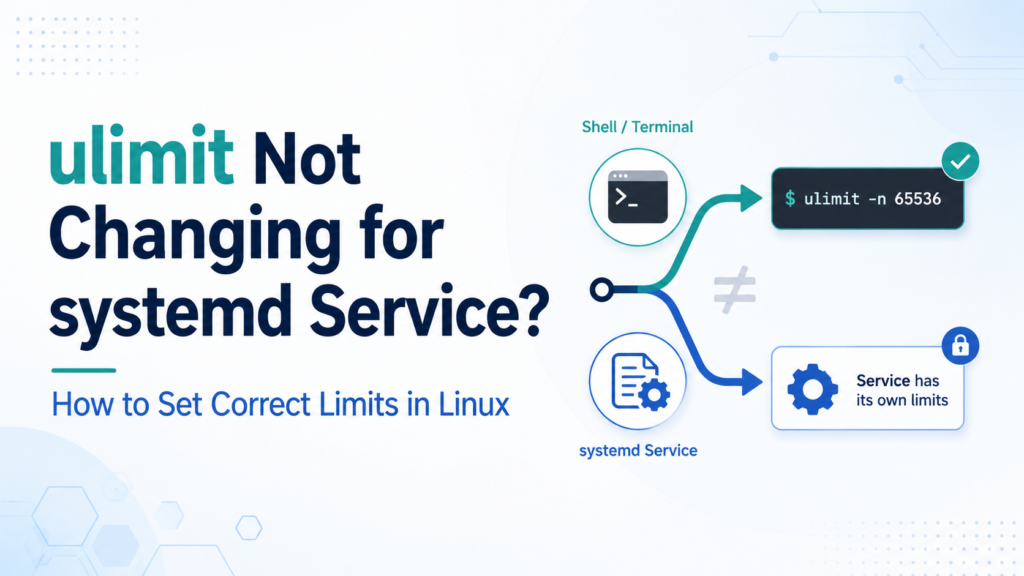
This is the typical ulimit not changing for systemd service problem. The setting you changed may be valid, but it was applied to the wrong process tree.
A systemd service is not normally launched from your SSH session or interactive shell. It is started by the systemd manager, which gives the process its own execution environment and resource limits. Changing .bashrc, running ulimit -n 65535, or editing /etc/security/limits.conf may alter login-session limits without affecting the service at all.
The reliable fix is to configure the appropriate Limit* directive in the systemd unit, reload systemd, restart the service, and verify the limit on the actual running process.
This guide explains why that works—and why several popular fixes do not.
Why Your Shell’s ulimit Does Not Control a systemd Service
Linux resource limits belong to processes.
A child process inherits limits from its parent process. That produces two separate process trees on a typical server:
systemd (PID 1)
└── your-service
    └── worker processes

sshd
└── your login shell
    └── commands you run manually
When you execute:
ulimit -n 65535
you change the open-file limit for the current shell. Commands launched from that shell inherit the new value.
For example:
ulimit -n 65535
./my-application
The manually started application may receive a soft file-descriptor limit of 65535.
A service started with:
sudo systemctl start my-application
does not become a child of that shell. The request is sent to systemd, and systemd launches the process using the unit’s configured limits.
That is the central idea:
Resource limits follow process inheritance, not usernames or terminal sessions.
Running the service under the same Linux account as your shell does not mean it receives the same limits.
Shell Limits, PAM Limits, and systemd Limits Compared
Linux provides several places where resource limits can be configured. They apply at different points in a process’s lifecycle.
| Configuration method | Applies to | Typical use | Affects an existing systemd service? |
|---|---|---|---|
ulimit shell command | Current shell and future child processes | Temporary tests | No |
.bashrc or .profile | Interactive or login shells | User shell defaults | No |
/etc/security/limits.conf | PAM-created login sessions | SSH and console users | Usually no |
/etc/security/limits.d/*.conf | PAM-created login sessions | Managed per-user defaults | Usually no |
LimitNOFILE= and other unit directives | Processes launched by a systemd unit | Per-service limits | Yes, after restart |
DefaultLimitNOFILE= | Units without an explicit override | Manager-wide default | Yes, for newly launched processes |
/proc/<PID>/limits | Actual running process | Verification | Read-only view |
The important distinction is not whether a configuration file contains the service account’s username. It is whether that configuration mechanism participates when the process is created.
Why /etc/security/limits.conf Often Has No Effect
A common attempted fix looks like this:
myapp soft nofile 65535
myapp hard nofile 65535
added to:
/etc/security/limits.conf
The administrator logs in as myapp and confirms:
ulimit -Sn
ulimit -Hn
Both values look correct.
The systemd service still shows the old limits.
That is expected on most standard configurations because limits.conf is interpreted by the PAM module pam_limits. The Linux-PAM documentation describes it as a module that sets resource limits for a user session.
PAM may be involved when a user logs in through SSH, a console, login, or another PAM-enabled application. The system manager does not ordinarily open a new PAM login session when it starts a normal system service.
Therefore:
SSH login → PAM → limits.conf → shell
is a different path from:
systemd → unit configuration → service process
limits.conf is not broken. It is simply controlling another execution path.
When limits.conf is still useful
It remains appropriate for:
- Interactive SSH sessions
- Console logins
- Commands launched from those sessions
- User workloads started through a PAM-enabled login path
- Restricting resources available to particular login users
It should not be your first choice for a system-level .service unit.
The Correct Fix: Use systemd Limit* Directives
For a systemd service, place resource limits in the unit’s [Service] section.
To raise the open-file limit:
[Service]
LimitNOFILE=65535
The systemd execution documentation maps LimitNOFILE= to the shell’s ulimit -n.
Other common mappings include:
| Shell command | systemd directive | Resource |
ulimit -n | LimitNOFILE= | Open file descriptors |
ulimit -u | LimitNPROC= | Processes or threads for a user |
ulimit -c | LimitCORE= | Core dump size |
ulimit -l | LimitMEMLOCK= | Locked memory |
ulimit -s | LimitSTACK= | Stack size |
ulimit -f | LimitFSIZE= | Maximum file size |
ulimit -t | LimitCPU= | CPU time |
ulimit -v | LimitAS= | Virtual address space |
You can set both soft and hard values with a colon:
[Service]
LimitNOFILE=65535:131072
The first number is the soft limit. The second is the hard limit.
A process can usually lower or raise its soft limit up to the hard limit. It cannot raise the hard limit without the necessary privilege.
If you provide one value:
LimitNOFILE=65535
systemd applies it as both the soft and hard limit.
Use a Drop-In Instead of Editing the Vendor Unit
Do not directly edit a unit file under directories such as:
/usr/lib/systemd/system/
/lib/systemd/system/
Package upgrades may replace those files.
Create a drop-in override instead:
sudo systemctl edit myapp.service
Your editor opens a file where you can add:
[Service]
LimitNOFILE=65535
Save and exit.
The override is normally stored under a path similar to:
/etc/systemd/system/myapp.service.d/override.conf
This approach is safer because:
- Package upgrades preserve the override.
- Your local customization remains easy to identify.
systemctl catshows the base unit and all drop-ins.- Configuration-management tools can manage the override cleanly.
Apply the change:
sudo systemctl daemon-reload
sudo systemctl restart myapp.service
daemon-reload makes systemd reread unit files. It does not recreate the running service process, so a restart is still required.
A resource limit is assigned when the process starts. Editing the unit cannot rewrite the limits of an already running process.
Complete Example: Raising the Open-File Limit
Assume an API service is failing under high concurrency because it reaches the open-file limit.
First, inspect the current unit:
systemctl cat api.service
Create an override:
sudo systemctl edit api.service
Add:
[Service]
LimitNOFILE=65535
Reload and restart:
sudo systemctl daemon-reload
sudo systemctl restart api.service
Check its state:
systemctl status api.service
Then verify the effective configuration:
systemctl show api.service -p LimitNOFILE
Depending on the systemd version, this may display the configured value in an internal numeric representation.
The most reliable test is to inspect the running process itself.
Get its main PID:
systemctl show api.service -p MainPID --value
Then inspect the kernel’s view:
cat /proc/$(systemctl show api.service -p MainPID --value)/limits
To display only the open-file line:
grep "Max open files" \
  /proc/$(systemctl show api.service -p MainPID --value)/limits
Expected output:
Max open files 65535 65535 files
The kernel exposes both soft and hard resource limits through /proc/<PID>/limits, making it more authoritative than checking an unrelated shell.
Verify the Process, Not the Service Account
One of the most useful troubleshooting habits is to stop asking:
What limit does the user have?
Instead, ask:
What limit does the affected process have?
Run:
cat /proc/<PID>/limits
The Linux proc_pid_limits documentation defines this file as the view of the process’s soft limits, hard limits, and measurement units.
You can also enter the process’s context with tools such as prlimit:
sudo prlimit --pid <PID>
For open files only:
sudo prlimit --pid <PID> --nofile
This avoids a common false conclusion:
sudo -u myapp ulimit -n
Even if that command were executed through a shell correctly, it would show the limits of a new process created through sudo, not necessarily the limits of the existing service.
Common Reasons the systemd Limit Still Does Not Change
1. You forgot to restart the service
This sequence is incomplete:
sudo systemctl edit myapp.service
sudo systemctl daemon-reload
The existing process keeps its old limits.
Restart it:
sudo systemctl restart myapp.service
2. The override is in the wrong section
This is incorrect:
[Unit]
LimitNOFILE=65535
LimitNOFILE= belongs in [Service] for a service unit:
[Service]
LimitNOFILE=65535
Check for parsing warnings:
systemd-analyze verify myapp.service
Also inspect recent logs:
journalctl -u myapp.service -b
3. You edited the wrong unit
A package may use a templated, generated, or differently named unit.
Examples include:
app.service
app@worker.service
app-worker.service
Check the actual process:
systemctl status myapp.service
systemctl cat myapp.service
For template instances, edit the relevant template or instance:
sudo systemctl edit myapp@.service
or:
sudo systemctl edit myapp@worker.service
4. Another drop-in overrides your value
Display the complete merged configuration:
systemctl cat myapp.service
Inspect the effective property:
systemctl show myapp.service -p LimitNOFILE
Drop-ins are applied in lexical order. A later configuration file may replace an earlier value.
To see the unit’s fragment and drop-in paths:
systemctl show myapp.service \
  -p FragmentPath \
  -p DropInPaths
5. The application lowers its own limit
systemd can start the service with a high limit, but the application may call setrlimit() and lower it afterward.
Compare the systemd property with:
cat /proc/<PID>/limits
If the unit reports a higher value than the live process, investigate:
- Application startup code
- Wrapper scripts
- Runtime configuration
- Process supervisors
- Language-specific launchers
A shell wrapper can also override the value:
#!/bin/bash
ulimit -n 4096
exec /usr/local/bin/myapp
In this case, the service inherits systemd’s limit first, and the script lowers it before launching the application.
6. A parent supervisor launches the real process
Some systemd units start another process manager, which then launches workers.
Examples include:
- Gunicorn
- PM2
- supervisord
- Java service wrappers
- Custom shell scripts
- Application-specific master processes
Inspect the process tree:
systemctl status myapp.service
or:
pstree -p $(systemctl show myapp.service -p MainPID --value)
Then inspect /proc/<PID>/limits for both the master and workers.
Child processes normally inherit limits, but an intermediate process may deliberately change them.
LimitNOFILE Is Not the Same as the System-Wide File Limit
Raising:
LimitNOFILE=65535
changes the per-process file-descriptor ceiling for the service.
It does not automatically change every kernel-level file setting.
Related values include:
cat /proc/sys/fs/file-max
cat /proc/sys/fs/nr_open
They answer different questions:
| Setting | Meaning |
LimitNOFILE= | Soft and hard open-descriptor limit for the service process |
fs.nr_open | Kernel ceiling for a process’s RLIMIT_NOFILE |
fs.file-max | Approximate system-wide file-handle ceiling |
Setting LimitNOFILE= above the kernel-supported ceiling will not magically expand that ceiling.
Before selecting a very large value, ask how many descriptors the application actually needs. Each connection, socket, log, pipe, event source, and regular file may consume a descriptor, but arbitrarily high values can hide leaks rather than fix them.
Monitor current usage:
ls /proc/<PID>/fd | wc -l
For a more detailed view:
lsof -p <PID>
A service using 1,020 descriptors under a limit of 1,024 may need a larger limit. A service whose descriptor count grows forever probably needs a leak investigation as well.
Be Careful with LimitNPROC
LimitNPROC= is frequently misunderstood.
On Linux, the corresponding RLIMIT_NPROC is generally counted per real user ID rather than purely per service. Multiple services running as the same user may contribute to the same limit.
It also counts threads on Linux, not only traditional processes.
For systemd-managed services, TasksMax= is often a clearer control when your goal is to restrict the number of tasks in a particular unit:
[Service]
TasksMax=4096
These controls are not exact substitutes:
LimitNPROC=is an inherited process resource limit associated with the user.TasksMax=uses the service’s control group and applies to the unit.
Choose the mechanism that matches the boundary you are trying to control.
Setting Default Limits for Multiple Services
You can define manager-wide defaults in systemd configuration, such as:
DefaultLimitNOFILE=65535
For the system manager, this belongs in system.conf or an appropriate drop-in under:
/etc/systemd/system.conf.d/
For example:
sudo mkdir -p /etc/systemd/system.conf.d
sudo editor /etc/systemd/system.conf.d/90-resource-limits.conf
Add:
[Manager]
DefaultLimitNOFILE=65535
However, a per-unit override is usually safer.
Global defaults can affect many services, including ones that do not need the increased limit. They are also harder to review because the setting is far from the unit that depends on it.
Prefer:
[Service]
LimitNOFILE=65535
unless you deliberately want a new default across the manager.
Be especially cautious when changing manager-wide settings on production systems. Existing services still need to be restarted before their processes receive new limits.
A Reliable Troubleshooting Workflow
When a limit appears unchanged, use this sequence.
Step 1: Find the real process
systemctl show myapp.service -p MainPID --value
Step 2: Inspect its live limits
cat /proc/<PID>/limits
Step 3: Inspect the merged unit configuration
systemctl cat myapp.service
Step 4: Check systemd’s effective property
systemctl show myapp.service -p LimitNOFILE
Step 5: Reload and restart
sudo systemctl daemon-reload
sudo systemctl restart myapp.service
Step 6: Inspect the new PID
systemctl show myapp.service -p MainPID --value
Confirm that the PID changed and check its limits again.
Step 7: Inspect child processes
pstree -p <MAIN_PID>
If workers have different values, look for a wrapper or application-level limit change.
Production Recommendations
A practical production approach is:
- Set limits in a systemd drop-in for the affected service.
- Configure both soft and hard values intentionally.
- Keep the limit close to the workload’s realistic requirements.
- Reload systemd and restart the service during a controlled window.
- Verify
/proc/<PID>/limitsafter deployment. - Monitor current resource usage, not only the configured ceiling.
- Investigate leaks rather than repeatedly raising limits.
- Document why each non-default limit is required.
For example:
[Service]
LimitNOFILE=65535
LimitCORE=0
TasksMax=4096
Do not copy this block blindly. Each directive should reflect the service’s behavior and operational requirements.
A high open-file limit can be appropriate for a reverse proxy or event-driven server with thousands of connections. The same setting may be unnecessary for a small scheduled job.
Conclusion
When ulimit is not changing for a systemd service, the problem is usually not that Linux ignored your configuration.
The limit was applied to a different process tree.
A value set with ulimit affects the current shell and its future children. A rule in /etc/security/limits.conf normally affects PAM-created login sessions. A system service is launched by systemd and receives limits from its unit configuration and the system manager.
For a service-specific open-file limit, use:
[Service]
LimitNOFILE=65535
Then run:
sudo systemctl daemon-reload
sudo systemctl restart myapp.service
Finally, verify the result on the actual process:
cat /proc/$(systemctl show myapp.service -p MainPID --value)/limits
That final check matters. Configuration files show what you intended; /proc/<PID>/limits shows what the kernel is enforcing.
Have you encountered a service that ignored limits.conf, inherited an unexpected file limit, or lowered its own limit during startup? Share the service and the diagnostic command that revealed the cause in the comments.
For more practical Linux, systemd, Docker, Kubernetes, and DevOps troubleshooting guides, subscribe to Codefy and explore the related tutorials.