
You run a Docker container and it has its own hostname, process list, network stack, filesystem view, and sometimes even its own idea of who “root” is.
But it is still using the same Linux kernel as the host.
That feels strange until you understand Linux namespaces.
If you are looking for linux namespaces explained with examples, the simplest way to think about namespaces is this:
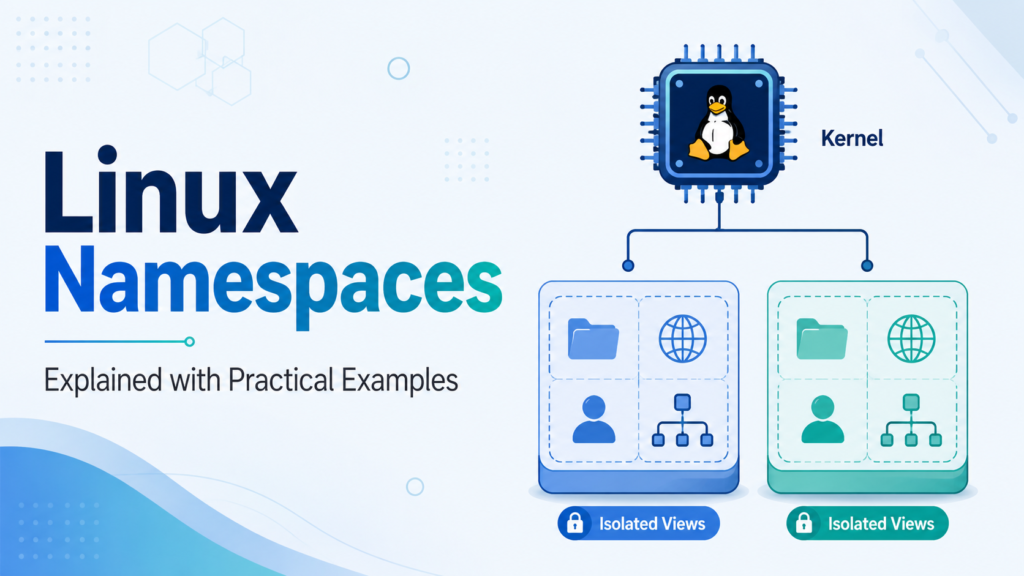
A namespace gives a process a private view of a global Linux resource.
The resource is still managed by the same kernel, but processes inside different namespaces see different versions of it.
That idea is the foundation of containers, Kubernetes Pods, rootless containers, network isolation, process isolation, and many Linux sandboxing tools.
In this guide, we will go beyond definitions. You will inspect namespaces on a real system, create a few with unshare, enter existing ones with nsenter, and understand how they work together to make containers possible.
What Are Linux Namespaces?
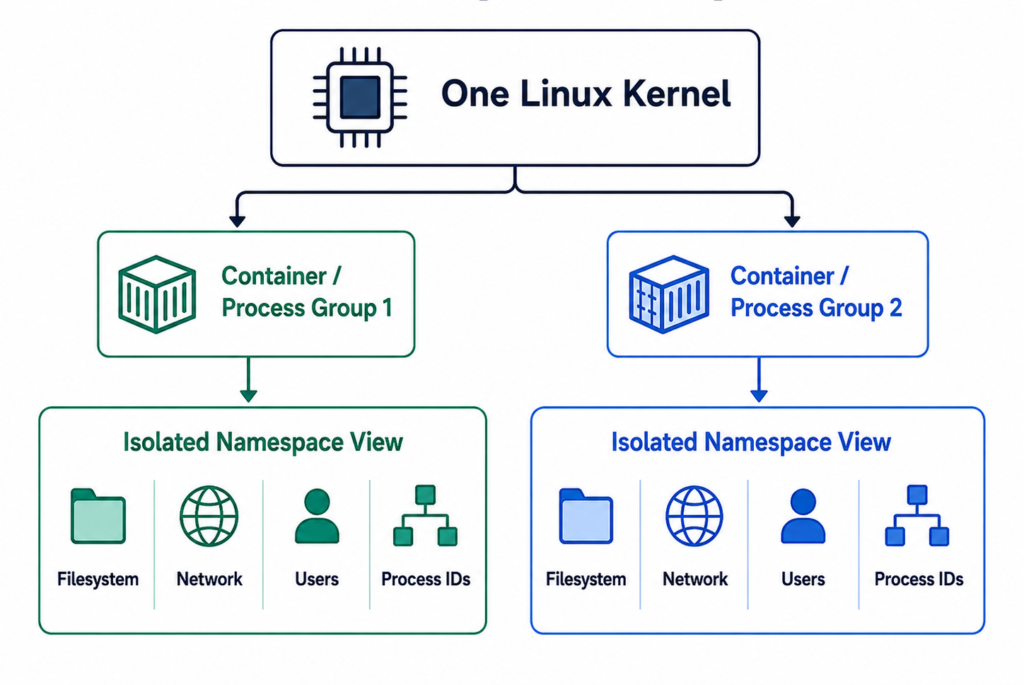
Linux normally has many global resources:
- One process ID space
- One hostname
- One network stack
- One mount tree
- One set of IPC objects
- One view of user and group IDs
- One cgroup path view
- One boot-time and monotonic-clock view
Namespaces split those global resources into isolated views.
For example, two processes can run on the same host but see different hostnames:
Process A → hostname = host-server
Process B → hostname = container-1
Both processes are using the same kernel. They are simply in different UTS namespaces.
That is the key difference between containers and virtual machines.
A virtual machine runs a separate guest kernel. A container uses the host kernel but isolates processes using namespaces, cgroups, capabilities, seccomp, filesystem layers, and other Linux features.
Namespaces provide isolation of “what the process can see.” Cgroups control “how much resource the process can use.”
Both are important, but they solve different problems.
Types of Linux Namespaces
Linux supports several namespace types.
| Namespace | Isolates | Practical example |
|---|---|---|
Mount mnt | Mount points and filesystem view | A container has its own root filesystem |
PID pid | Process IDs | A process appears as PID 1 inside a container |
Network net | Interfaces, routes, ports, firewall rules | A container gets its own IP and network stack |
UTS uts | Hostname and NIS domain name | A container has a different hostname |
IPC ipc | System V IPC and POSIX message queues | Shared memory isolation between workloads |
User user | User IDs, group IDs, capabilities | Root inside a namespace maps to non-root outside |
Cgroup cgroup | View of cgroup paths | A container sees / as its cgroup root |
Time time | Boot and monotonic clock offsets | Testing time-sensitive workloads |
Not every container uses every namespace in the same way.
For example, Kubernetes Pods commonly share a network namespace between containers in the same Pod. That is why containers inside one Pod can reach each other through localhost.
How to See Namespaces for a Process
Every Linux process exposes namespace handles under:
/proc/<PID>/ns/
Check your current shell:
ls -l /proc/$$/ns
Example output:
cgroup -> cgroup:[4026531835]
ipc    -> ipc:[4026531839]
mnt    -> mnt:[4026531840]
net    -> net:[4026531969]
pid    -> pid:[4026531836]
user   -> user:[4026531837]
uts    -> uts:[4026531838]
The number inside brackets is a namespace inode.
If two processes show the same namespace inode for net, they are in the same network namespace. If the numbers differ, they are in different network namespaces.
Compare your shell with PID 1:
readlink /proc/$$/ns/pid
readlink /proc/1/ns/pid
On the host, these may match.
Inside a container, your shell may see a different PID namespace from the host’s PID 1.
You can also use:
lsns
This lists namespaces known to the system and the processes using them.
Example 1: UTS Namespace — Give a Shell Its Own Hostname
The UTS namespace isolates the hostname.
Open a shell in a new UTS namespace:
sudo unshare --uts bash
Inside that shell, change the hostname:
hostname ns-demo
hostname
Output:
ns-demo
Now open another terminal on the host and run:
hostname
The host hostname is unchanged.
Exit the namespace shell:
exit
This is a small example, but it explains why a container can show a different hostname without changing the host.
A container runtime simply creates a new UTS namespace, sets the hostname inside it, and starts the container process there.
Example 2: PID Namespace — Make a Process See Itself as PID 1
The PID namespace isolates process IDs.
Create a new PID namespace:
sudo unshare --pid --fork --mount-proc bash
Now run:
echo $$
ps -ef
You should see that your shell is PID 1 inside this namespace.
That does not mean it is PID 1 on the host. It means the process has one PID inside the namespace and another PID outside.
This is why a container process can appear as PID 1 inside the container but as a normal process on the host.
A simplified view looks like this:
Host PID namespace:
  PID 43210 → container shell

Container PID namespace:
  PID 1 → same shell
This also explains why PID 1 behavior matters in containers.
Inside a PID namespace, the first process acts like init for that namespace. If it exits, the namespace’s process tree is terminated. That is one reason container entrypoints should handle signals and child processes correctly.
For production containers, this is why tools like tini, dumb-init, or well-designed application entrypoints matter.
Example 3: Mount Namespace — Create a Private Mount View
The mount namespace isolates the list of mount points.
Create a new mount namespace:
sudo unshare --mount --fork bash
Inside it, make mount propagation private to avoid surprises:
mount --make-rprivate /
Now create a temporary mount:
mkdir -p /tmp/ns-mount-demo
mount -t tmpfs tmpfs /tmp/ns-mount-demo
df -h /tmp/ns-mount-demo
You will see a tmpfs mounted inside this namespace.
Open another terminal on the host and run:
mount | grep ns-mount-demo
You should not see the mount there.
Exit the namespace shell:
exit
The mount disappears when the namespace is destroyed.
This is the basic idea behind container filesystem isolation. A container can have a different root filesystem, different mounted volumes, and different /proc view without changing the host mount tree.
One important detail: mount propagation can make mount events visible across namespaces in some cases. That is why many container runtimes carefully configure mount propagation as private, slave, or shared depending on the use case.
Example 4: Network Namespace — Create a Private Network Stack
The network namespace isolates network devices, IP addresses, routing tables, firewall rules, sockets, and ports.
Create a namespace:
sudo ip netns add blue
Run a command inside it:
sudo ip netns exec blue ip addr
You will usually see only the loopback interface:
1: lo: <LOOPBACK> mtu 65536
Bring loopback up:
sudo ip netns exec blue ip link set lo up
Now check routes:
sudo ip netns exec blue ip route
There are no normal host routes unless you add them.
This explains why a container can have its own IP address, routing table, and port space.
For example, two containers can both listen on port 8080 because they are in different network namespaces:
Container A netns → 0.0.0.0:8080
Container B netns → 0.0.0.0:8080
On the host, those ports are not automatically the same port. Port publishing is an extra step handled by the container runtime using networking rules, proxies, or NAT.
Clean up:
sudo ip netns delete blue
Example 5: User Namespace — Root Inside, Non-Root Outside
The user namespace is one of the most powerful and misunderstood namespaces.
It isolates user IDs, group IDs, and capabilities.
Try:
unshare --user --map-root-user bash
Inside the shell:
id
You may see:
uid=0(root) gid=0(root)
But this does not mean you became real root on the host.
You are root inside the user namespace. Outside the namespace, that root user maps back to your normal user ID.
This is the foundation of rootless containers.
The benefit is huge: a process can have “root-like” privileges inside its own namespace without having full root privileges on the host.
However, user namespaces are also security-sensitive. Some distributions restrict unprivileged user namespace creation or control it through settings such as:
cat /proc/sys/user/max_user_namespaces
or distribution-specific sysctls.
If unshare --user --map-root-user fails, your system may have disabled or limited unprivileged user namespaces.
Example 6: Enter an Existing Namespace with nsenter
unshare creates new namespaces.
nsenter enters namespaces that already exist.
Find a process:
ps -ef | grep nginx
Suppose the PID is 12345.
Enter its network namespace:
sudo nsenter --target 12345 --net bash
Now run:
ip addr
ip route
ss -lntp
You are seeing networking from that process’s namespace.
This is extremely useful when debugging containers.
For example, if a container has network connectivity issues, you can enter its network namespace from the host and test routes, DNS, ports, and firewall rules from the same network view as the container.
To enter multiple namespaces:
sudo nsenter \
  --target 12345 \
  --mount \
  --uts \
  --ipc \
  --net \
  --pid \
  bash
Be careful. Once you enter a process’s namespaces, commands may affect that isolated environment.
Namespaces vs Cgroups
Namespaces and cgroups are often mentioned together, but they are not the same.
| Feature | Namespaces | Cgroups |
| Main purpose | Isolation | Resource control |
| Controls what? | What a process can see | How much it can use |
| Examples | PID list, hostname, network stack | CPU, memory, I/O, process count |
| Container role | Creates isolated views | Enforces limits and accounting |
A PID namespace can make a process see only a few processes.
A cgroup can limit that process to 512 MB of memory.
You usually need both for containers.
Without namespaces, the process sees too much of the host. Without cgroups, the process may consume too many host resources.
How Containers Use Namespaces Together
A container is not one namespace. It is a process placed into several namespaces at once.
A simplified container startup flow looks like this:
Container runtime
   ↓
Create namespaces
   ↓
Set hostname
   ↓
Prepare mount tree
   ↓
Configure network namespace
   ↓
Map users if rootless
   ↓
Apply cgroups and security policies
   ↓
Start container process
Docker documentation describes a container as a process isolated with its own filesystem, networking, and process tree. Under the hood, namespaces provide much of that isolation.
A typical container may use:
- PID namespace for process isolation
- Mount namespace for filesystem view
- Network namespace for interfaces and routes
- UTS namespace for hostname
- IPC namespace for IPC isolation
- User namespace for rootless or remapped users
- Cgroup namespace to hide host cgroup paths
Kubernetes adds another layer.
A Kubernetes Pod usually shares one network namespace across its containers. That is why sidecars and application containers inside the same Pod can communicate over localhost.
So when you debug Kubernetes networking, you are often debugging the Pod’s network namespace, not an individual container’s private network stack.
Practical Debugging Commands
Show namespaces for the current shell
ls -l /proc/$$/ns
Compare two processes
readlink /proc/<PID1>/ns/net
readlink /proc/<PID2>/ns/net
If the output matches, both processes share the same network namespace.
List namespaces
lsns
Show processes in a namespace
lsns -t net
Enter a container-like process namespace
sudo nsenter --target <PID> --net --mount --uts --ipc --pid bash
Create a temporary namespace for testing
sudo unshare --uts --mount --fork bash
Check namespace limits
ls /proc/sys/user/
cat /proc/sys/user/max_user_namespaces
These commands are useful when Docker, Podman, Kubernetes, or systemd-nspawn behavior feels confusing.
Common Misunderstandings About Linux Namespaces
“A namespace is a security boundary by itself”
Not completely.
Namespaces are an isolation primitive, but secure containers also depend on cgroups, capabilities, seccomp, AppArmor or SELinux, read-only filesystems, user namespaces, and correct runtime configuration.
A privileged container can break many assumptions.
“Root inside a container is always root on the host”
Not necessarily.
With user namespaces, root inside a container can map to an unprivileged user outside. Without user namespace remapping, root inside the container often has more dangerous access if other protections are weakened.
“A mount namespace gives a container its own disk”
No.
It gives the process a different mount view. The underlying storage may still be directories, overlay filesystems, volumes, bind mounts, or network storage from the host.
“Network namespace means internet access automatically works”
No.
A fresh network namespace may only have loopback. You need interfaces, IP addresses, routes, DNS, NAT, or bridges to make it useful.
“PID namespace hides a process from the host”
It hides host processes from the namespace, but the host can still see processes inside child PID namespaces.
That is why you can run ps on the host and see container processes.
Conclusion
Linux namespaces are the reason containers can feel like lightweight virtual machines while still using the host kernel.
They do not create a new operating system. They create isolated views of specific kernel-managed resources.
A PID namespace gives a process its own process tree. A network namespace gives it its own interfaces, routes, and ports. A mount namespace gives it a private filesystem view. A UTS namespace gives it a separate hostname. A user namespace can make root inside the namespace map to a normal user outside.
Once you understand that, Docker and Kubernetes become much easier to reason about.
The best way to learn is hands-on:
ls -l /proc/$$/ns
sudo unshare --uts bash
sudo unshare --pid --fork --mount-proc bash
sudo ip netns add demo
sudo nsenter --target <PID> --net bash
Start with one namespace at a time. Watch what changes. Then combine them mentally into the container model.
That is when Linux namespaces stop feeling like hidden container magic and start looking like practical, inspectable Linux building blocks.
Have you used unshare, nsenter, or /proc/<PID>/ns to debug a container or Kubernetes issue? Share the command that helped you understand the problem in the comments.
For more practical Linux, Docker, Kubernetes, and DevOps troubleshooting guides, subscribe to Codefy and explore the related tutorials.